Open System Settings ▸ General ▸ Storage and one of the biggest bars is often System Data, sometimes 50 or 100 GB. Unlike the other categories, it has no ⓘ button, so Storage won't tell you what's in it. Here is what it usually is, and how to find the part you can remove.
What System Data is
System Data is what's left over: everything Storage can't put in one of its other categories. It used to be called “Other”. Apple describes it as files the system uses, such as logs, caches, virtual memory, and temporary files. In practice it also includes a lot that belongs to you:
- Local Time Machine snapshots. If you use Time Machine, macOS keeps snapshots on the internal disk too, so you can restore files while the backup disk is away.
- App data in
~/Library: caches, Application Support and app containers. This is where Docker's disk image, Xcode's simulators and build folders, and many apps' downloaded content live. - Virtual machines kept inside apps' containers.
- iPhone and iPad backups made with the Finder.
- Swap and the sleep image in
/private/var/vm, which macOS resizes itself.
Some of it is the system's own and should stay. The big, surprising numbers almost always come from the first two: snapshots and app data.
Step 1: restart, and give it a minute
A restart clears swap files and temporary files, and macOS often cleans up caches afterwards. It takes a minute and removes nothing you need, so do it before measuring anything. Storage can take a few minutes to recalculate after that.
Step 2: local Time Machine snapshots
macOS deletes local snapshots on its own when space runs low, so they rarely cause a disk to fill up. They do make System Data look huge in the meantime. To see them, open Terminal and run:
tmutil listlocalsnapshots /Each line is a snapshot with a date. To delete one, pass its date:
tmutil deletelocalsnapshots 2026-09-20-101530Your Time Machine backups on the backup disk are separate, and deleting local snapshots doesn't touch them.
Step 3: find the folders behind it
Everything else in System Data is ordinary files in ordinary folders, mostly in
~/Library, /Library and /private/var. Storage won't show them,
but a disk tool will, once it's allowed to read them. First give it Full Disk Access in System
Settings ▸ Privacy & Security ▸ Full Disk Access. Without it, macOS hides other apps' containers,
which is often exactly where the space is.
In the Terminal, this lists what's in ~/Library, largest last:
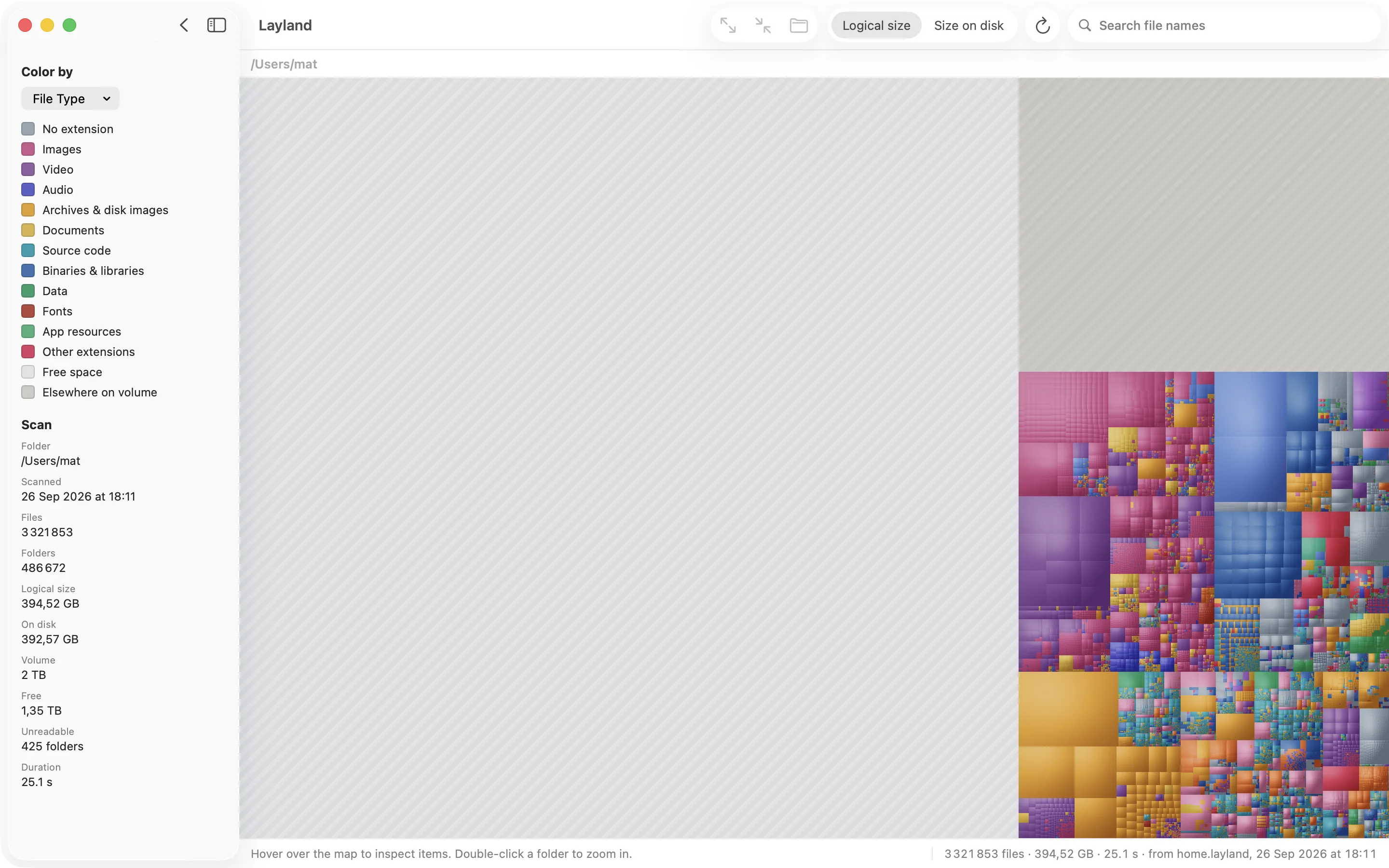
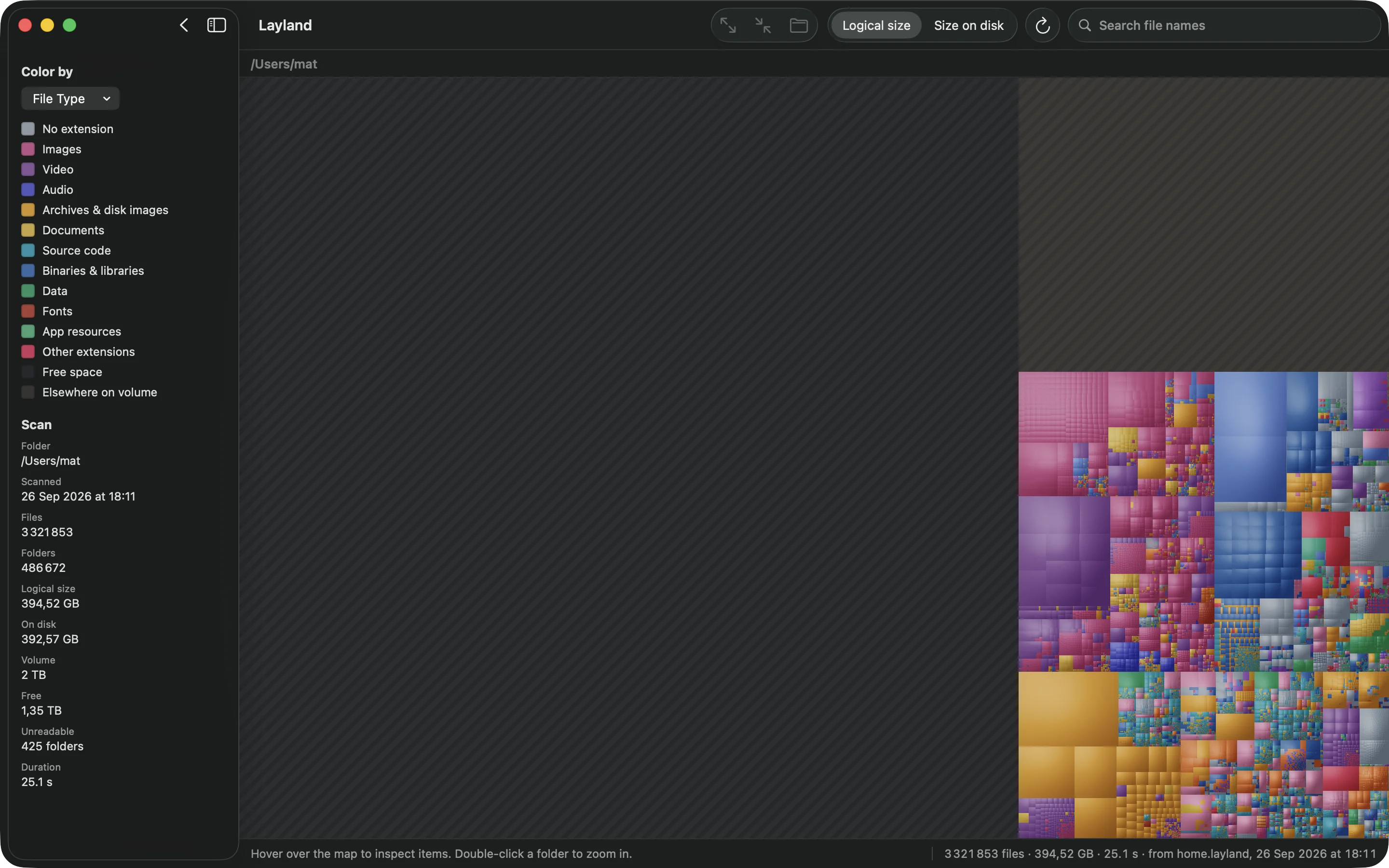
du -h -d 1 ~/Library 2>/dev/null | sort -hA treemap is quicker to read. Scan your home folder in Layland and
~/Library shows up as one area of the map, with its biggest folders visible straight
away. With Show Free Space on, the rest of the disk appears too, so you can see how much of the
disk your home folder accounts for, and how much is outside it.
The usual culprits, and how to clear them
Use each app's own cleanup where there is one. It knows what's safe to remove.
- Docker Desktop keeps all images and containers in one disk image in
~/Library/Containers/com.docker.docker. Rundocker system pruneto remove stopped containers and unused images, or lower the disk limit in Docker's settings. - Xcode: in
~/Library/Developer,Xcode/DerivedDatais build output and safe to delete; Xcode rebuilds it.xcrun simctl delete unavailableremoves simulators for versions you no longer have, andXcode/iOS DeviceSupporthas a folder for every iOS version you've connected a device with. - iPhone and iPad backups: connect a device, select it in the Finder's sidebar, click
Manage Backups, and delete the backups of devices you no longer have. They're in
~/Library/Application Support/MobileSync/Backup. - Caches in
~/Library/Caches: safe to remove, since apps rebuild them, but they grow back. Quit the app first. Homebrew's is cleared withbrew cleanup. - Virtual machines: delete the ones you don't use from inside Parallels, UTM or VMware.
Leave /System, /private/var/db and anything you can't identify alone, and
move files to the Trash instead of using rm, so you can put them back.
Storage may keep showing the old number for a while after you delete things. It recalculates in the background; a restart gets it there sooner.
Questions
Why is System Data so big on my Mac?
It's everything Storage settings can't put in another category: caches, logs, local Time Machine snapshots, app data in ~/Library such as Docker's disk image or Xcode's simulators, virtual machines and device backups. The large numbers usually come from snapshots and app data.
Can I delete System Data?
Not as a whole, and there's no button for it. You clear it by removing what's inside: local snapshots with tmutil, caches, old device backups, and the data of apps you use, through their own cleanup. Find the big folders first with du or a disk tool that has Full Disk Access.
Is System Data the same as Other?
Yes. Older versions of macOS called it Other; since macOS Monterey, Storage settings call it System Data.
Does deleting local Time Machine snapshots delete my backups?
No. Local snapshots are extra copies on the internal disk. The backups on your Time Machine disk are separate and aren't affected.
Why did System Data not shrink after I deleted files?
Storage settings recalculate in the background and can take a while to catch up. Restart the Mac and check again after a few minutes. If you moved files to the Trash, empty it, too.
Other guides
See the whole disk in seconds.
Scanning and the full map are free, with no time limit.
Until 31 October: $5.99 instead of $9.99 · 14-day refund
14-day refund, no questions asked