When the disk is full, the quickest win is usually a handful of large files you forgot about: an old virtual machine, a video export, a folder of installers. Here are four ways to find them, from the one already on your Mac to the one that shows everything at once.
1. The Large Files list in Storage settings
Open System Settings ▸ General ▸ Storage and click the ⓘ next to Documents. The Large Files tab lists your biggest files, largest first, and you can delete them right there.
It's the easiest place to start. It only covers documents in your home folder, though, and only files, not folders.
2. A Finder search by size
The Finder can search by file size across the whole Mac:
- Open a Finder window and press ⌘F. Click This Mac.
- Click the first pop-up menu (it says Kind) and choose Other…. Find File Size, tick it, and click OK.
- Set it to is greater than 1 GB, or 500 MB for a longer list.
- Switch to list view (⌘2) and click the Size column to sort.
Click Save to keep the search in the sidebar. It uses Spotlight, so it's instant, but it
skips anything Spotlight doesn't index: hidden folders, most of ~/Library, and some
external drives. That's where Docker's disk image and Xcode's simulators are, so they won't show
up here.
3. One command in the Terminal
find looks at every file, hidden or not. This lists the files over 1 GB in your home
folder, with their sizes:
find ~ -type f -size +1G -exec ls -lh {} + 2>/dev/nullChange +1G to +500M for a longer list, or ~ to
/ for the whole disk. It reads every folder, so on a large home folder it takes a minute
or more, and Terminal needs Full Disk Access to see
everything.
Large folders matter as much as large files
A size search finds single big files. It misses the other half: folders of many small files. A
node_modules folder, a photo library or a cache of 200,000 thumbnails can take
20 GB without a single file over 100 MB. To find those, you need folder totals, like
du -h -d 1 ~ | sort -h or the Finder's
Calculate all sizes.
4. A treemap: files and folders together
A treemap shows both at once. Every file is a block sized to the space it takes up, and every folder is a block made of its contents. A single large file is one big flat block; a folder of many small files is an area of tiny ones, the same total size.
Layland scans a 3.3-million-file home folder in about 14 seconds. Once the map is up:
- Hover over any block for its path and size.
- Press ⌘] to select the largest item inside a folder, again and again, to get to the biggest file in a few keystrokes.
- Search for part of a name, like
.dmg,.movor.zip, and everything else dims. - Color by age (View ▸ Color By ▸ Last Modified) to see what hasn't changed in years. Big and old is the easiest thing to delete.
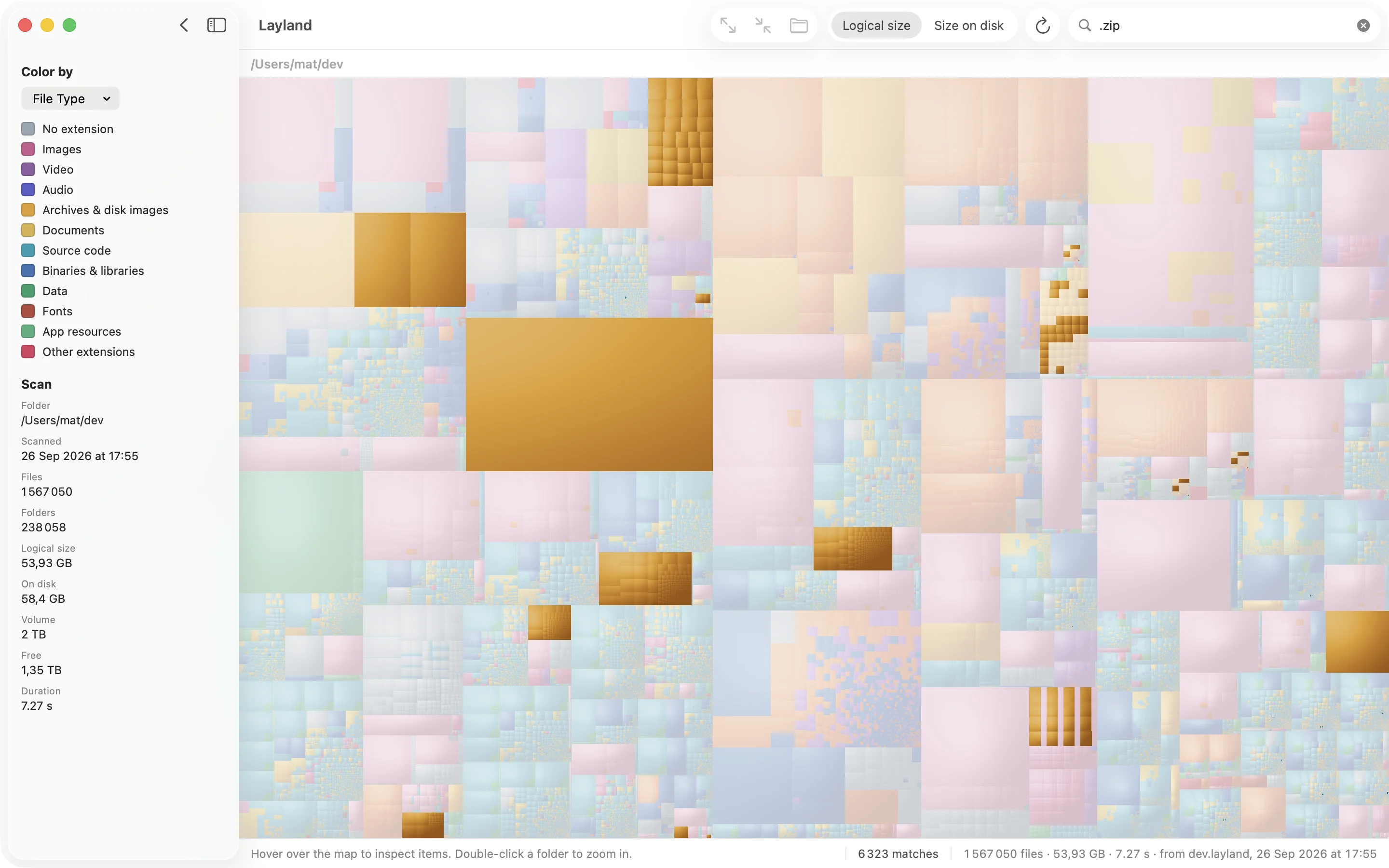
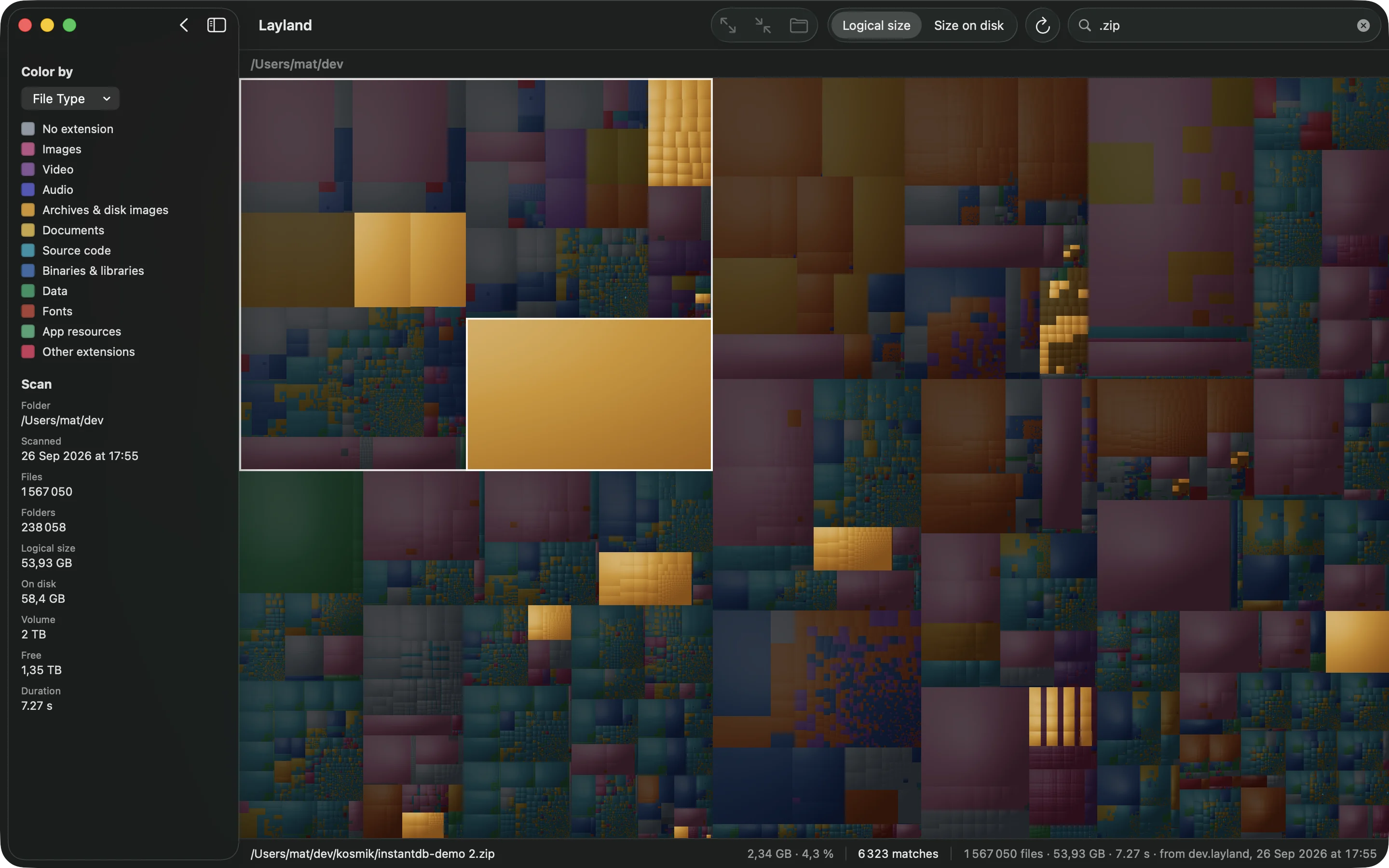
.zip: 6,323 archives light up, and everything else dims.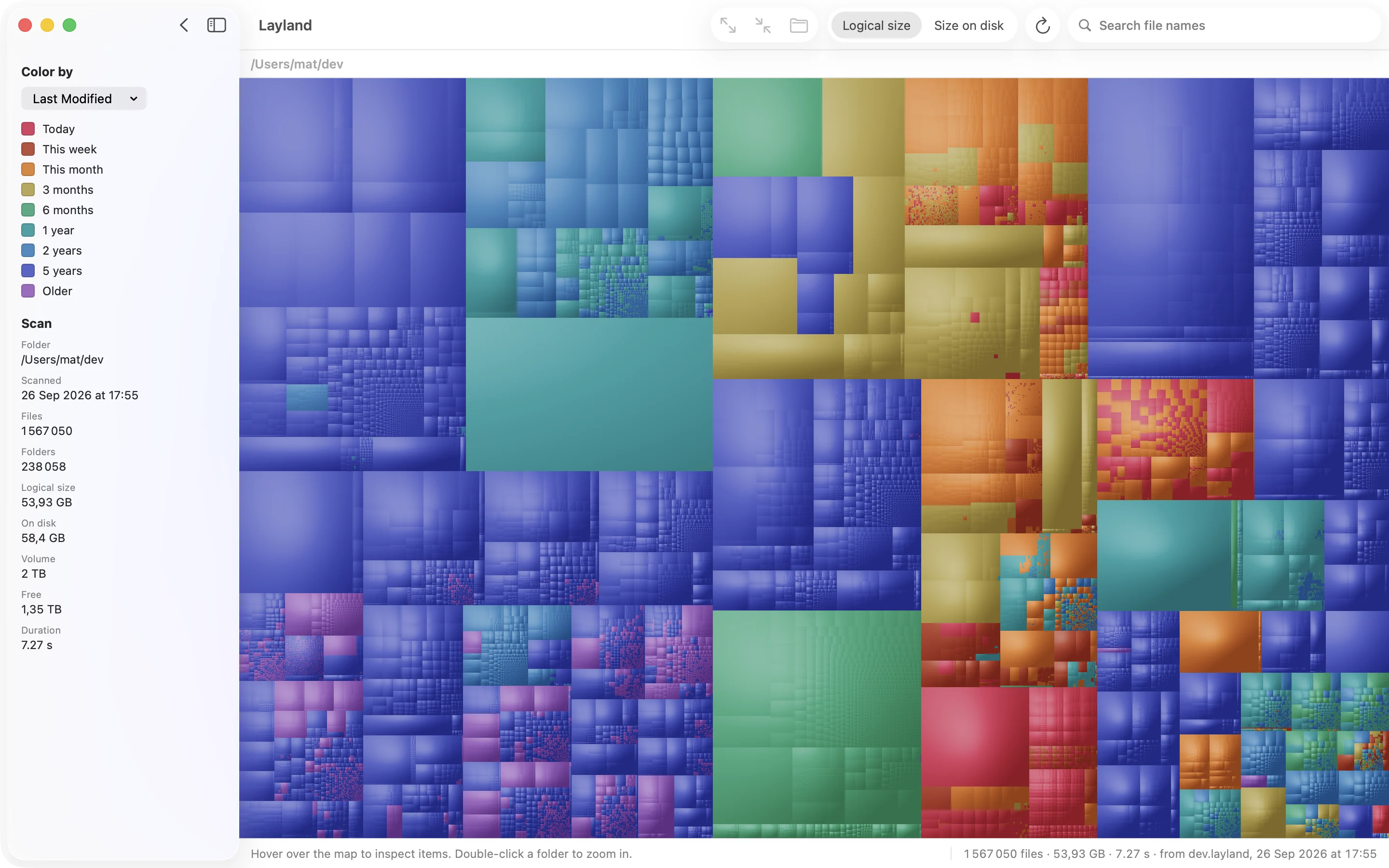
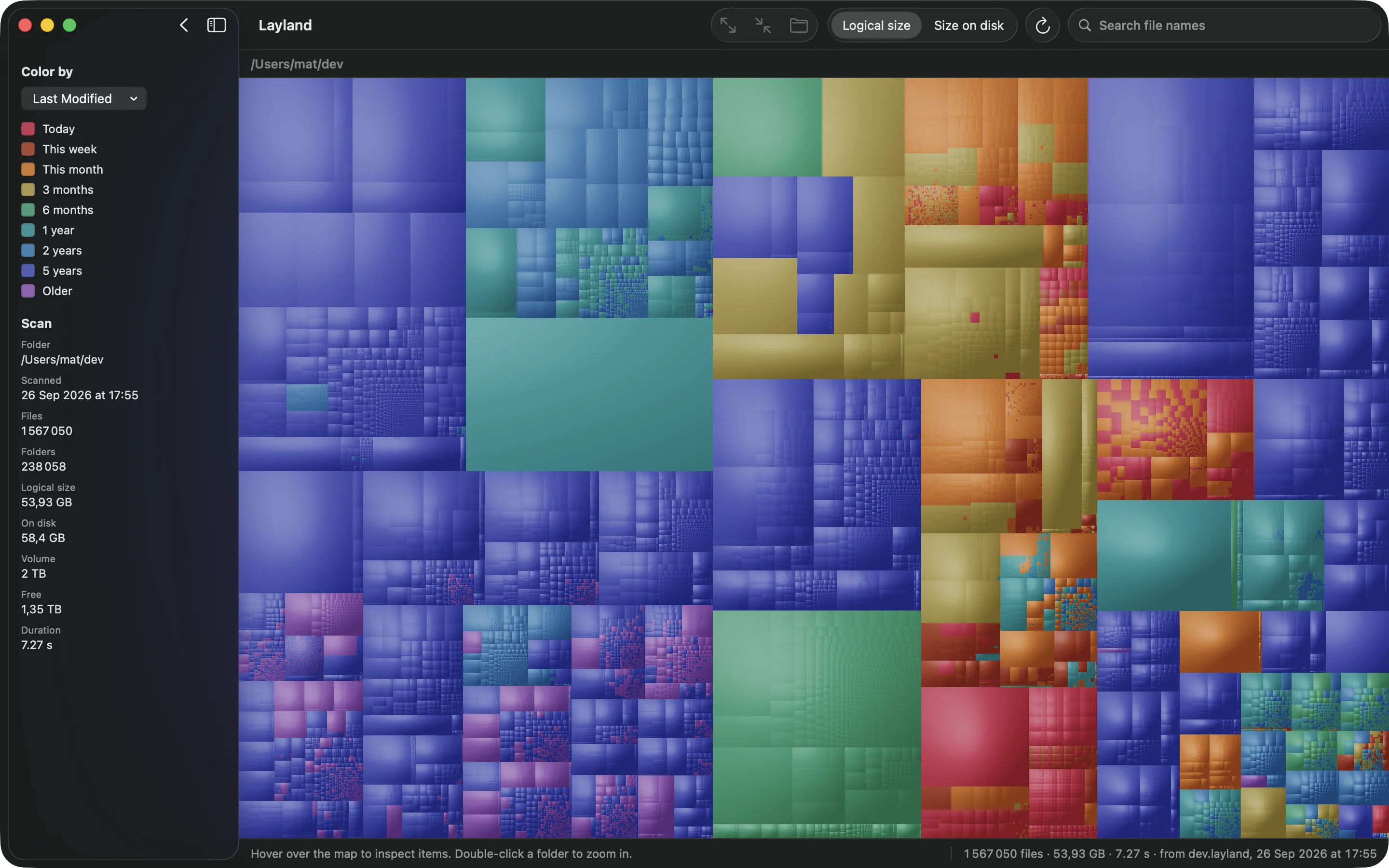
Then press space to preview a file with Quick Look, or choose Item ▸ Move to Trash. Nothing is deleted permanently; it all goes to the Trash first. Scanning and the full map are free; file names, search and the actions need a license.
What to look for
- Disk images and installers (
.dmg,.pkg,.iso) in Downloads, after the app is installed. - Video: screen recordings, exports and camera footage, often in Movies or on the Desktop.
- Virtual machines from Parallels, UTM or VMware, tens of gigabytes each.
- Archives (
.zip) you've already unpacked. - Old iPhone and iPad backups in
~/Library/Application Support/MobileSync/Backup.
When you've deleted what you need to, empty the Trash. The space isn't freed until you do.
Questions
How do I find the largest files on my Mac?
Start with System Settings ▸ General ▸ Storage, then the ⓘ next to Documents, and the Large Files tab. For the whole disk, search in the Finder with a File Size criterion, run find ~ -type f -size +1G in the Terminal, or scan with a treemap app like Layland, which shows large files and large folders together.
Why doesn't the Finder search find all my large files?
It uses Spotlight, which doesn't index hidden folders, most of ~/Library, or some external drives. Large files kept there, such as Docker's disk image or Xcode's simulators, won't show up. find in the Terminal, or a disk tool with Full Disk Access, reads every folder.
How do I find large folders, not just files?
Folder totals need a tool that adds up everything inside: the Finder's Calculate all sizes option in list view, du -h -d 1 ~ | sort -h in the Terminal, or a treemap, which shows every folder at its full size.
I deleted large files but have no more free space. Why?
They're in the Trash until you empty it. If the Trash is empty, local Time Machine snapshots may still hold the deleted data; macOS removes those itself when it needs the space.
Other guides
How to see what's taking up space
Storage settings, the Finder, the Terminal and a treemap: what each shows, and which to use when the disk is nearly full.
What System Data is, and how to shrink it
The gray bar in Storage settings that won't say what it is. What goes in it, and how to find the part you can remove.
See the whole disk in seconds.
Scanning and the full map are free, with no time limit.
Until 31 October: $5.99 instead of $9.99 · 14-day refund
14-day refund, no questions asked