A Mac has three built-in ways to answer “what is using my disk?”, and each one stops short somewhere. Here is what each shows, where it gives up, and what to do next. The first three are free and already on your Mac.
1. Storage settings: the overview
Open System Settings ▸ General ▸ Storage. The bar at the top splits the disk into categories (Applications, Documents, Photos, macOS, System Data and a few others), and the list below it has an ⓘ button for most of them. The one for Documents is the most useful: it lists large files, downloads and apps you no longer use, and lets you delete them there.
This is the right first stop, and for many people it is enough. It gives up in two places. The categories are Apple's, not your folders, so a 40 GB project folder is just part of “Documents”. And System Data has no ⓘ button at all, though it is often the biggest category of all.
2. The Finder: folder by folder
The Finder shows folder sizes if you ask it to. Open a folder, switch to list view (⌘2), then choose View ▸ Show View Options (⌘J) and tick Calculate all sizes. Click the Size column to sort, largest first.
That works one folder at a time, so finding a big folder three levels down means opening each level
and waiting for the sizes to fill in. The Finder also hides ~/Library and other hidden
folders, which is often where the space went. ⌘⇧. shows hidden files, and
Go ▸ Go to Folder (⌘⇧G) opens ~/Library directly.
3. The Terminal: every folder at once
du (“disk usage”) adds up every folder under the one you give it. This lists the folders
in your home folder, smallest to largest, so the biggest end up at the bottom:
du -h -d 1 ~ 2>/dev/null | sort -hThen run it again on the biggest one, for example du -h -d 1 ~/Library | sort -h, and keep
going down. The 2>/dev/null hides the “Operation not permitted” lines for the folders
macOS protects (see Full Disk Access below).
It's accurate and free, but slow on a big folder. On a 3.3-million-file home folder,
du takes 76 seconds, and each step down means running it again. You also end up
with a column of numbers, which shows the big folders but not how they compare.
4. A treemap: the whole disk on one screen
A treemap draws every file as a rectangle sized to the space it takes up, and every folder as a rectangle made of its contents. A folder that fills half the disk fills half the picture, however many levels down it is. Large files look large, and you don't have to open anything to find them.
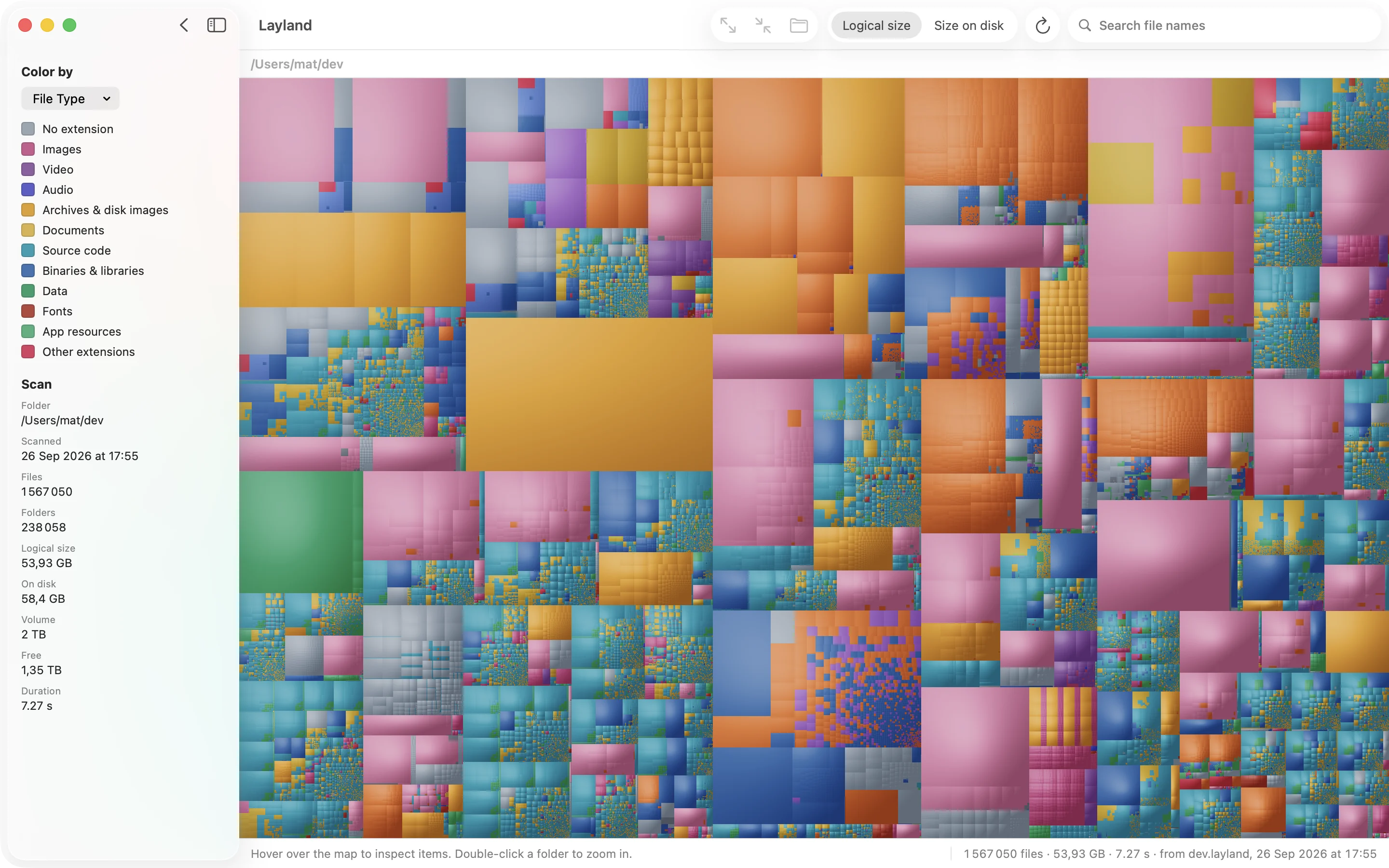
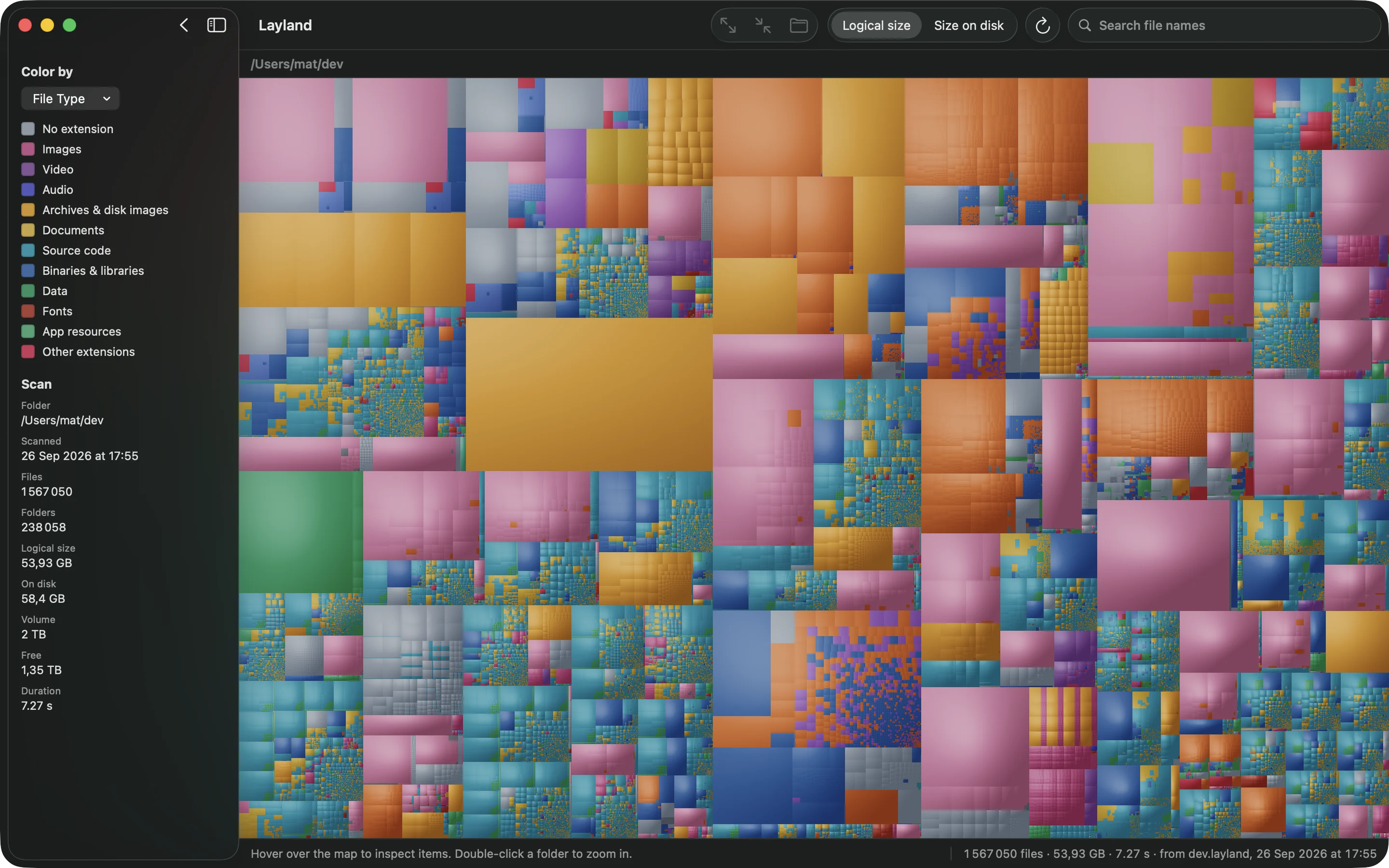
Layland is a treemap app for macOS built to be fast: it scans a 3.3-million-file home
folder in about 14 seconds, where du takes 76 and GrandPerspective 97. Hover any block
for its path and size. Click one and press ⌘[ to select the folder around it, or
⌘] to select the largest item inside a folder, which gets you to the biggest file in a few
keystrokes.
Two views help once the map is up. Color by age (View ▸ Color By ▸ Last Modified) colors files by when they last changed, so old files show up as one cool-colored area. Show Free Space adds the free space and the rest of the disk to the map, so you can see how big a folder is compared to the whole disk.
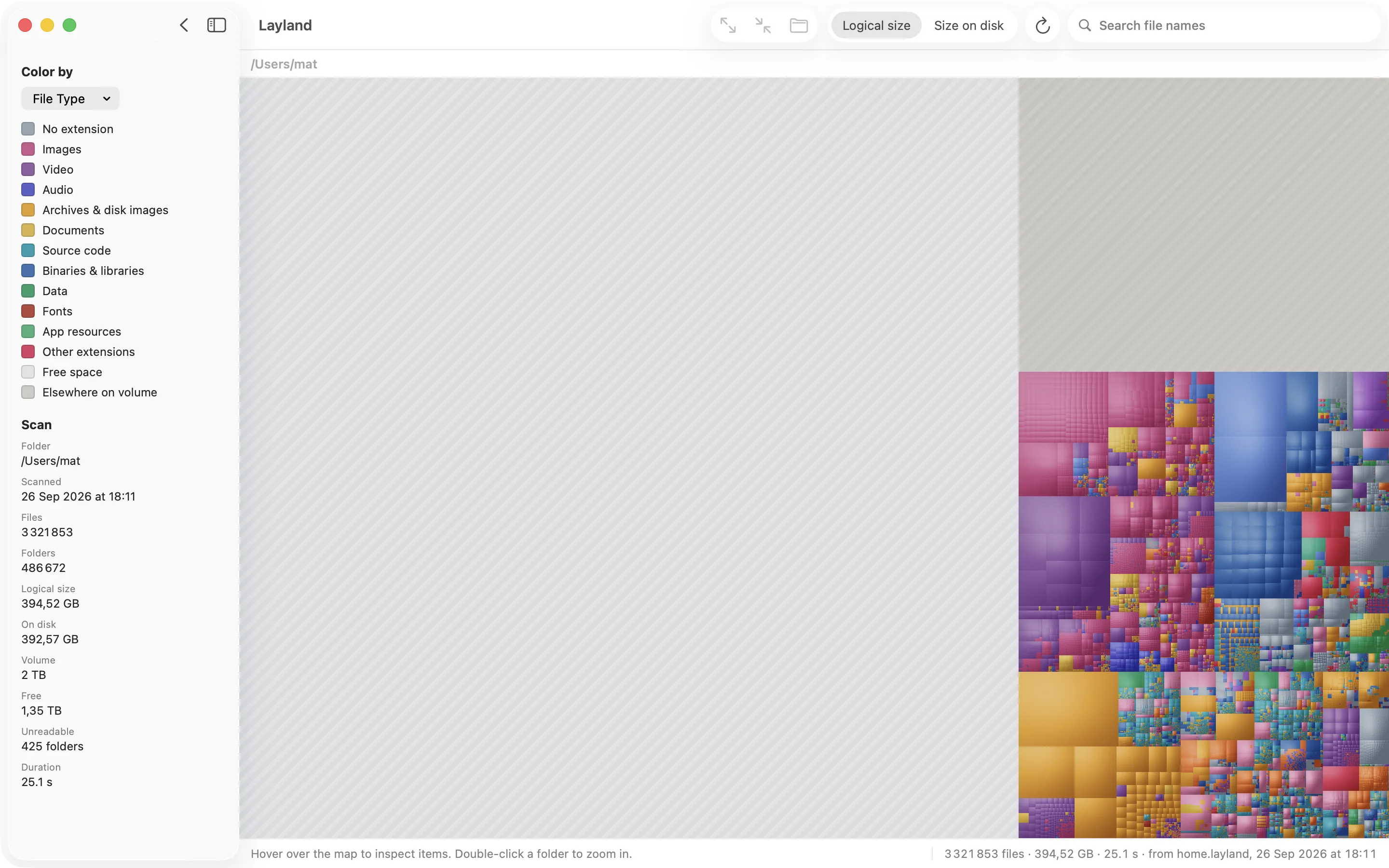
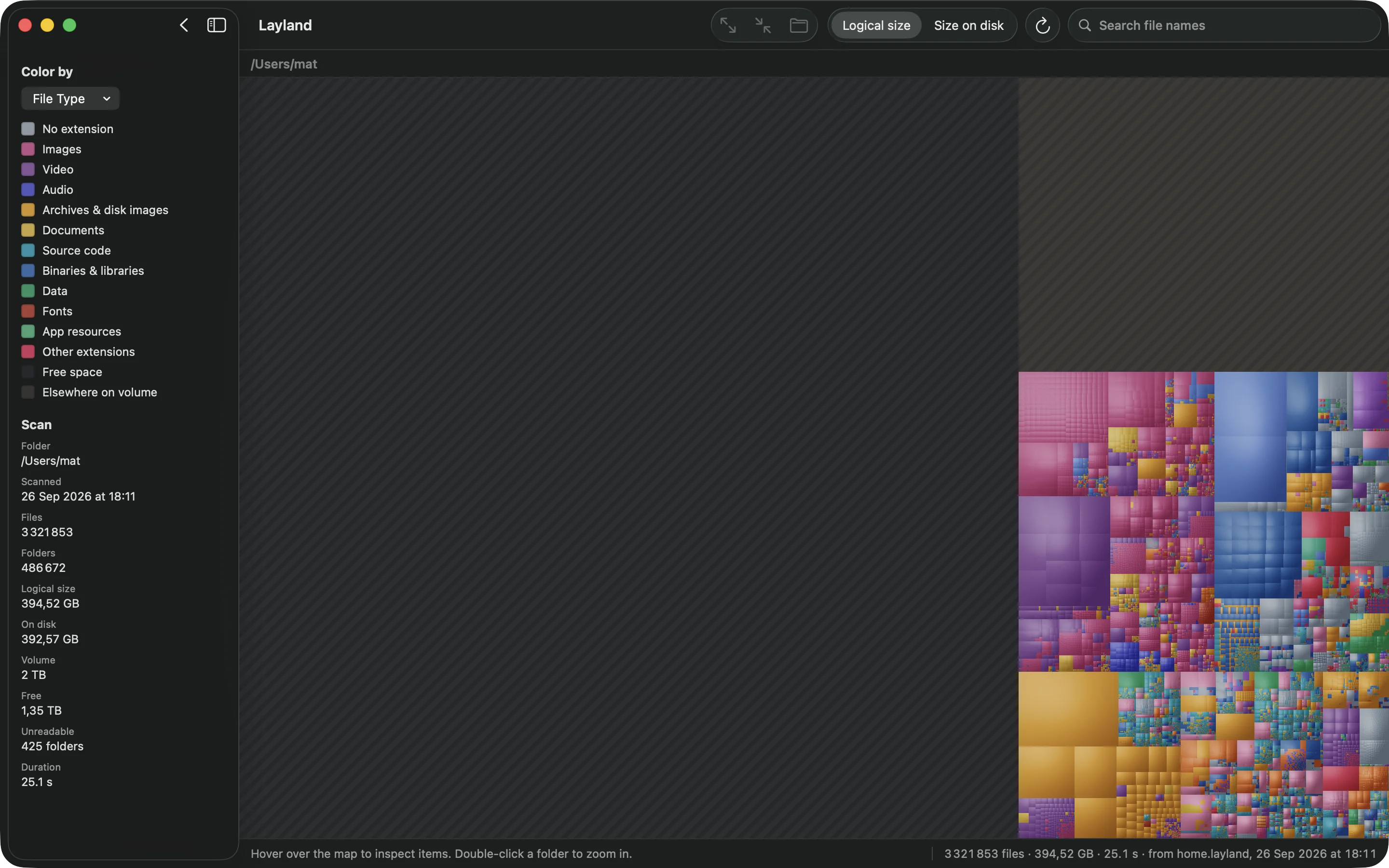
Scanning and the complete map are free. Folder names are shown two levels deep; a license shows every file name, and adds search, Quick Look, Reveal in Finder and Move to Trash.
Where the space usually goes
Most full disks come down to the same few culprits. Check these first:
- Virtual machines and containers. Docker Desktop keeps one disk image for all its containers
in
~/Library/Containers/com.docker.docker, and it only grows. Parallels, UTM and VMware virtual machines are single files of tens of gigabytes. - Xcode.
~/Library/Developerholds build folders (DerivedData), simulators, and support files for every iPhone you've connected. It can reach 50 GB or more. - iPhone and iPad backups, in
~/Library/Application Support/MobileSync/Backup. One per device, and old devices' backups stay until you delete them. - The Photos library, if it isn't set to Optimize Mac Storage in Photos ▸ Settings ▸ iCloud.
- Downloads: installers, disk images and archives you opened once.
- Caches in
~/Library/Caches. Apps rebuild them, so they're safe to remove, but they come back. - Messages and Mail attachments, in
~/Library/Messages/Attachmentsand~/Library/Mail.
Before deleting anything you don't recognize, look it up. Move things to the Trash rather than using
rm, so a mistake can be undone.
Full Disk Access, and why totals disagree
macOS keeps some folders, like other apps' containers in ~/Library, Mail and Messages,
from apps unless you allow it. A disk tool without that permission undercounts, and the missing part
is often exactly where the space went. Give it Full Disk Access in System Settings ▸ Privacy
& Security ▸ Full Disk Access, including Terminal if you use du.
Even then, different tools can show different totals for the same disk, and there are good reasons:
- Purgeable space. The Finder counts space macOS can free when it needs to (iCloud files kept locally, local Time Machine snapshots) as available. Other tools count it as used.
- Logical size vs size on disk. A sparse file, like a virtual machine's disk image, can report a size of 64 GB while using far less. Layland's toolbar switches between the two.
- APFS clones. Copying a file in the Finder on the same disk makes a clone that shares its data with the original, so two 10 GB copies can use 10 GB, not 20. Tools that add up file sizes count it twice.
Questions
What is the fastest way to see what's using space on a Mac?
For an overview, System Settings ▸ General ▸ Storage. To find the actual folders and files, a treemap app like Layland scans a whole home folder in seconds and shows every file to scale, so the biggest ones are obvious without opening folders one by one.
How do I see folder sizes in the Finder?
Open the folder in list view, choose View ▸ Show View Options, and tick Calculate all sizes. Then click the Size column to sort. It works one folder at a time.
Is it safe to delete files in ~/Library?
Some of it. Caches in ~/Library/Caches are rebuilt by the apps that made them. Other folders hold app settings and data you'd lose, so look up anything you don't recognize, and move things to the Trash rather than deleting them outright.
Why does my disk tool show a different number from the Finder?
Usually one of three things: purgeable space, which the Finder counts as available; sparse files, whose logical size is larger than what they use on disk; and APFS clones, which share data but get counted twice by tools that add up file sizes. Missing Full Disk Access makes a tool undercount, too.
Is Layland free?
Scanning and the full map are free, with no time limit, and folder names are shown two levels deep. A one-time license shows every file name and adds search, Quick Look, Reveal in Finder and Move to Trash.
Other guides
What System Data is, and how to shrink it
The gray bar in Storage settings that won't say what it is. What goes in it, and how to find the part you can remove.
How to find large files
A Finder search, the Large Files list, one Terminal command, and why the biggest folder often beats the biggest file.
See the whole disk in seconds.
Scanning and the full map are free, with no time limit.
Until 31 October: $5.99 instead of $9.99 · 14-day refund
14-day refund, no questions asked